Anda sedang menjalankan Windows dan keluar pesan "your system is running with too little virtual memory", hal ini disebabkan memang memory fisik yang rendah atau akibat dari kebocoran memory.
Sebuah kebocoran memoi adalah masalah umum yang disebabkan oleh aplikasi debug yang ditulis dengan buruk atau proses memakai memori terus dan terus sampai anda mematikan atau merestart komputer anda.
Virtual memory juga dikenal sebagai file halaman atau file swap, file di drive (c:\pagefile.sys) secara default. Ukuran default pada file ini adalah 1,5 kali jumlah memori fisik. Virtual memori adalah jumalh meori fisik dan file halaman. Jadi jika komputer anda meiliki RAM 512 MB, maka akan memiliki file halaman 768 MB secara default, jadi total 1,25 GB memori fisik + virtual.
Finding the source of the problem
First you need to determine which application is causing the problem.
Hit Control-Alt-Delete to bring up Task Manager (on certain XP Professional configurations you'll need to click the Task Manager button after hitting Control-Alt-Delete). You can also access Task Manager by holding down Control and Shift and pressing Escape.
Go to the Processes tab in Task Manager. Here you will see a list of all the processes (applications or parts thereof) that are running on your system. You will see the memory usage here, but in my experience this very rarely has anything to do with problems running low on virtual memory.
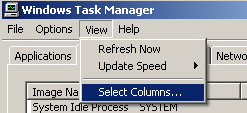
Click View, Select Columns.
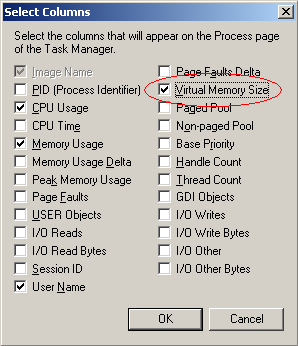
Check the Virtual Memory Size box, as circled in the screen shot below and click OK.
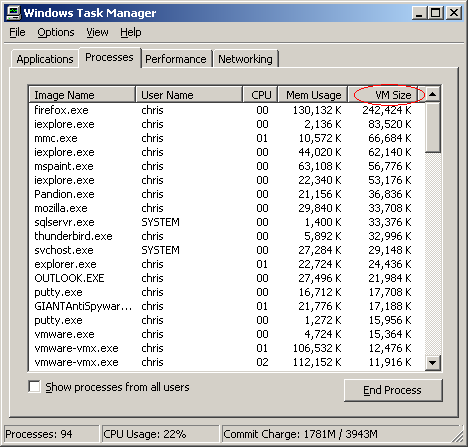
Once you determine which process is using more virtual memory than it should, you need to determine what the process is. Some are pretty obvious, like winword.exe is Microsoft Word, iexplore.exe is Internet Explorer, and so on. Others aren't so obvious. The best way to determine the source of a specific process is to use a search engine to search for the Image Name as shown in Task Manager.
Resolution
Now that you know which application is causing the problem, let's resolve it.
One common thing to try is to uninstall and reinstall the offending application if possible. Searching the Internet, and checking the support site of the software vendor would be the next two steps I would try. Without knowing which application is at fault, it's difficult to recommend a specific solution.
First you need to determine which application is causing the problem.
Hit Control-Alt-Delete to bring up Task Manager (on certain XP Professional configurations you'll need to click the Task Manager button after hitting Control-Alt-Delete). You can also access Task Manager by holding down Control and Shift and pressing Escape.
Go to the Processes tab in Task Manager. Here you will see a list of all the processes (applications or parts thereof) that are running on your system. You will see the memory usage here, but in my experience this very rarely has anything to do with problems running low on virtual memory.
Click View, Select Columns.
Check the Virtual Memory Size box, as circled in the screen shot below and click OK.
Once you determine which process is using more virtual memory than it should, you need to determine what the process is. Some are pretty obvious, like winword.exe is Microsoft Word, iexplore.exe is Internet Explorer, and so on. Others aren't so obvious. The best way to determine the source of a specific process is to use a search engine to search for the Image Name as shown in Task Manager.
Resolution
Now that you know which application is causing the problem, let's resolve it.
One common thing to try is to uninstall and reinstall the offending application if possible. Searching the Internet, and checking the support site of the software vendor would be the next two steps I would try. Without knowing which application is at fault, it's difficult to recommend a specific solution.

No comments:
Post a Comment